
#Connecting an agent
Lore is built to be shared with AI agents. A coding agent that can reach your project reads its folios before it starts, picks up a quest, ticks objectives as it goes and leaves a note of what it did, in the same place your team works.
There are three ways to connect something that is not a person in a browser. Pick by what you are connecting:
| You are connecting | Use |
|---|---|
| An AI agent on your machine (Claude Code, an IDE) | MCP with OAuth |
| Yourself, in a terminal | lore login |
| A CI job, or a client that cannot open a browser | An API key |
#An AI agent, over MCP
Lore's MCP server lives at /mcp on the instance:
https://lore.alepha.dev/mcpOn your own instance, use your own address. Any client that supports remote MCP servers needs nothing but this URL. With Claude Code, for example:
claude mcp add --transport http lore https://lore.alepha.dev/mcpThe first time the agent calls Lore, your browser opens on a Lore page that asks you to approve the connection. Approve, and the agent is connected as you.
#What a connected agent can do
An agent can do what you can do as a member of your projects: read and write quests, epics, folios and feedback, look at apps, deploy where your rank allows it. Every call goes through the same rank and capability checks as a click in the browser.
It cannot go further than that, even when you can:
- no instance administration, even if you are an administrator;
- no API keys: it cannot create or revoke one;
- no account settings.
A well-behaved agent starts with the project_context tool, which answers
what the project does, its areas, your quests in progress and its pinned
folios in one call. MCP tools lists
everything an agent can call.
#Seeing and revoking connections
Open your account (the person icon at the top right, then User Account) and go to Connected apps. Every connection you approved is listed there, and can be revoked.
#The lore command
The lore command drives a project from a terminal. It needs Node.js.
npm install -g @alepha/lore
lore login
lore login prints an address and a code. Open the address in a browser where
you are signed in to Lore, enter the code and approve. The machine then stays
signed in: the login renews itself, and ends after 30 days without a command,
after 180 days at most, or when you revoke it under Connected apps.
lore logout forgets it.
A login made this way has the same limits as an agent's connection: the projects you are a member of, nothing above them.
For your own instance, set LORE_URL first, and keep it set in the shell you
work from:
export LORE_URL=https://lore.example.com
lore login
Then tie a working copy to its project, so you never have to name it:
cd my-app
lore project link acme
lore quest list
lore project link writes .alepha/lore.json, which every later command
finds by walking up from the current directory.
The lore CLI lists every command.
#API keys
A CI job has nobody to approve a code, and some clients cannot open a browser. For them, create an API key: open your account, go to API keys and choose New key.
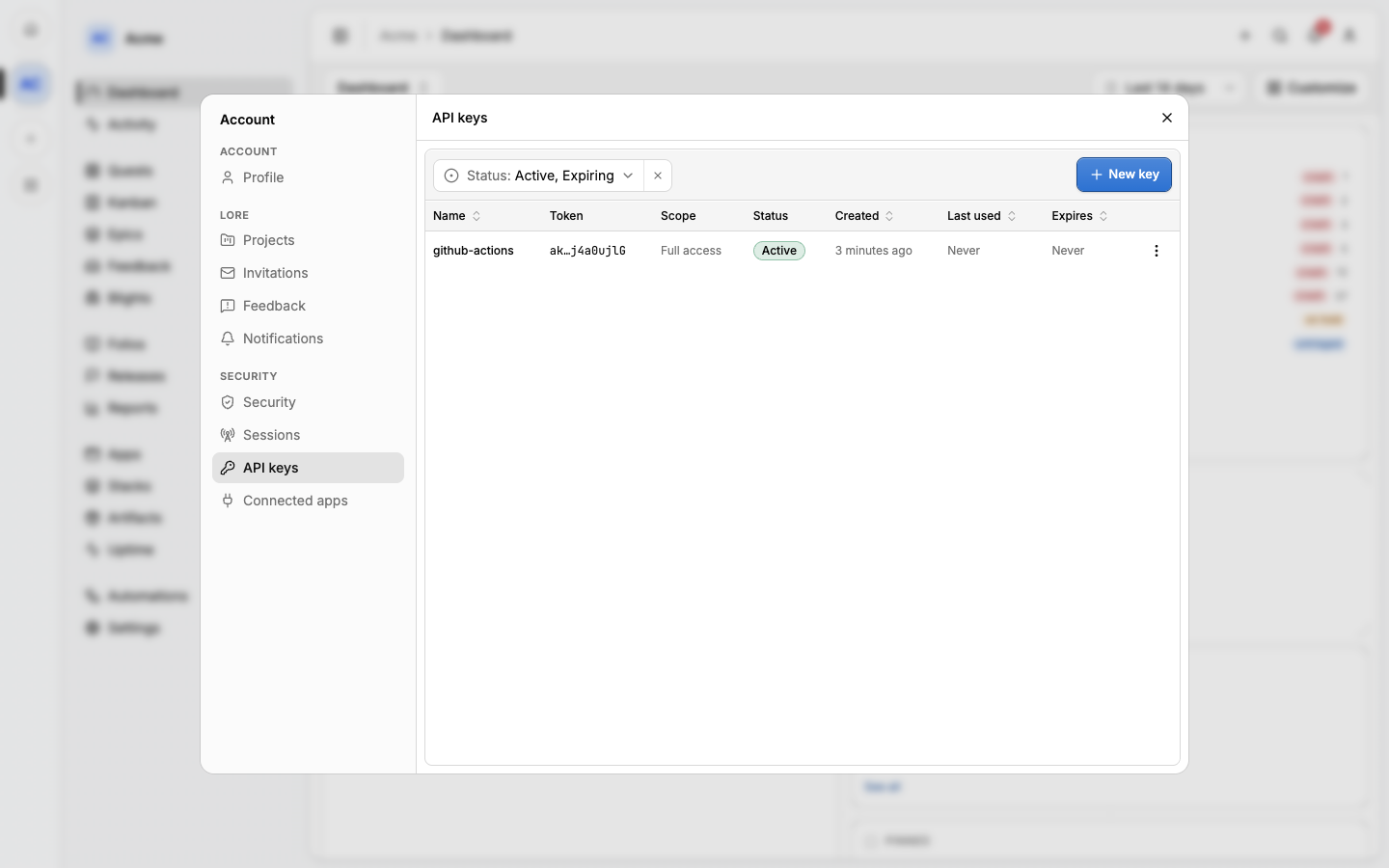
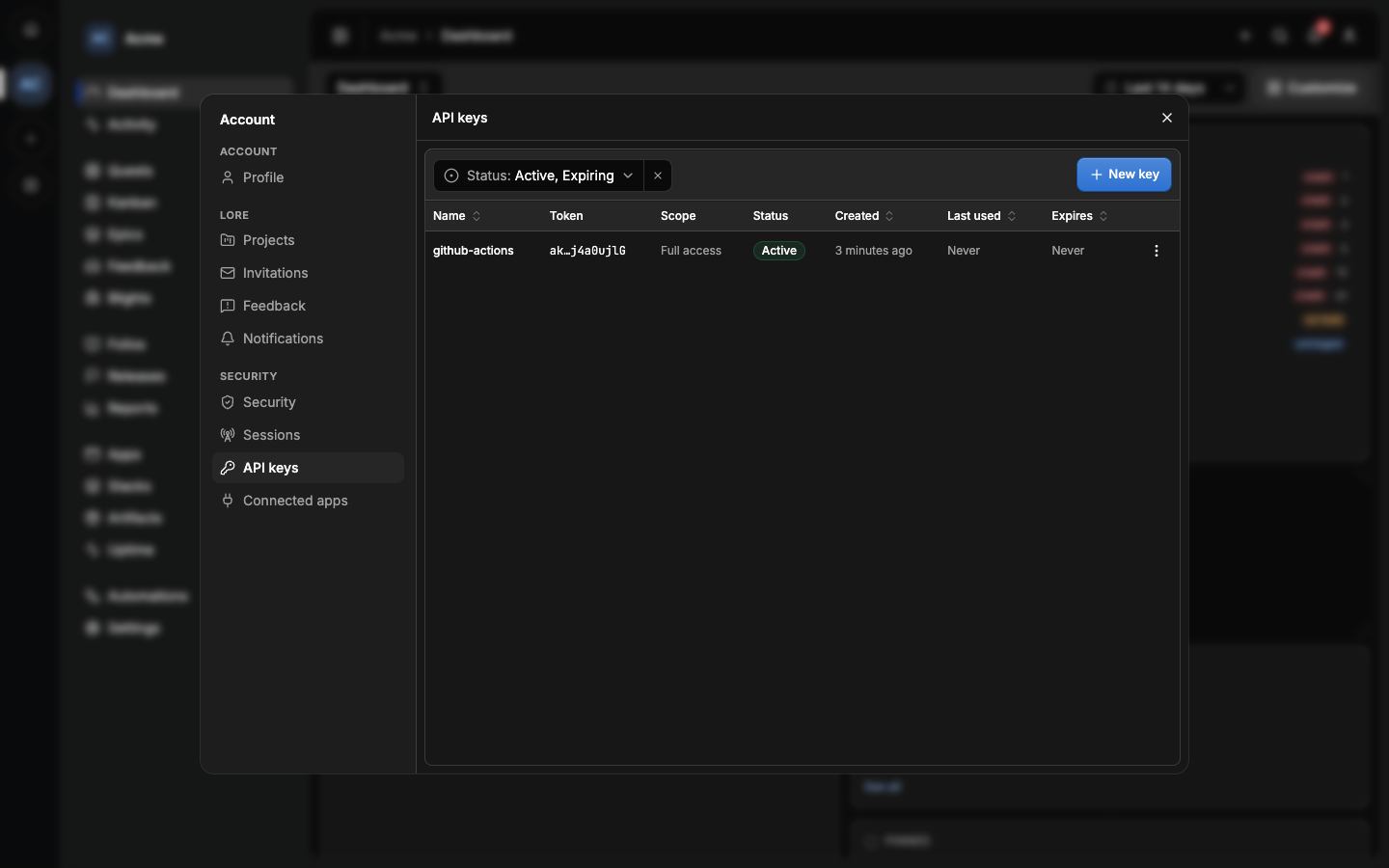
A key starts with ak_ and is shown once, when you create it. Give it a name
that says where it runs (github-actions), an expiry, and the narrowest scope
that does the job.
The lore command reads the key from LORE_API_KEY:
export LORE_API_KEY=ak_...
lore quest list -p acme
Any other client sends it as a bearer token, to the MCP server or to the API:
Authorization: Bearer ak_...⚠️ A key with full access is you, entirely. Unlike an OAuth connection or
a lore login, an API key is not limited to project work: it carries every
role your account has, administrator included, unless you gave it a narrower
scope when you created it. Prefer OAuth for an agent on your own machine, and
a scoped key with an expiry for CI. Revoke a key from the same API keys
list the moment it may have leaked.
#Giving the agent a good start
Connecting is the easy part. What makes an agent useful is what it finds:
- Pin a folio with your conventions. Pinned folios are handed to every agent with the project's context. See Folios.
- Describe your areas, so a new quest lands in the right one. See Quests.
- Use agent prompts to hand an agent a quest or an epic with one click, with the instructions your team agreed on.
#Next
- Agent prompts: ready-made instructions, copied from a quest, an epic or a feedback item.
- Assistant: the chat built into Lore itself.
- MCP tools and The lore CLI: the full lists.