
#Folios
Folios are a project's memory: Markdown notes, filed in a tree, linked to each other and to the work. Quests record what was done. Folios record what you know: a decision and its reasons, how a subsystem fits together, a runbook, the conventions of the codebase. Anything the next person, or the next agent session, should not have to rediscover.
Folios need the Write and keep knowledge capability, switched in Settings ▸ General ▸ Capabilities. See Capabilities.
#The workspace
Folios in the sidebar opens a workspace of three panes:
- the tree on the left, with every directory and folio of the project;
- the document in the middle, under a menu bar (Folio, Edit, Insert, View, History);
- the inspector on the right, with the open folio's Outline, History, Links and Files.
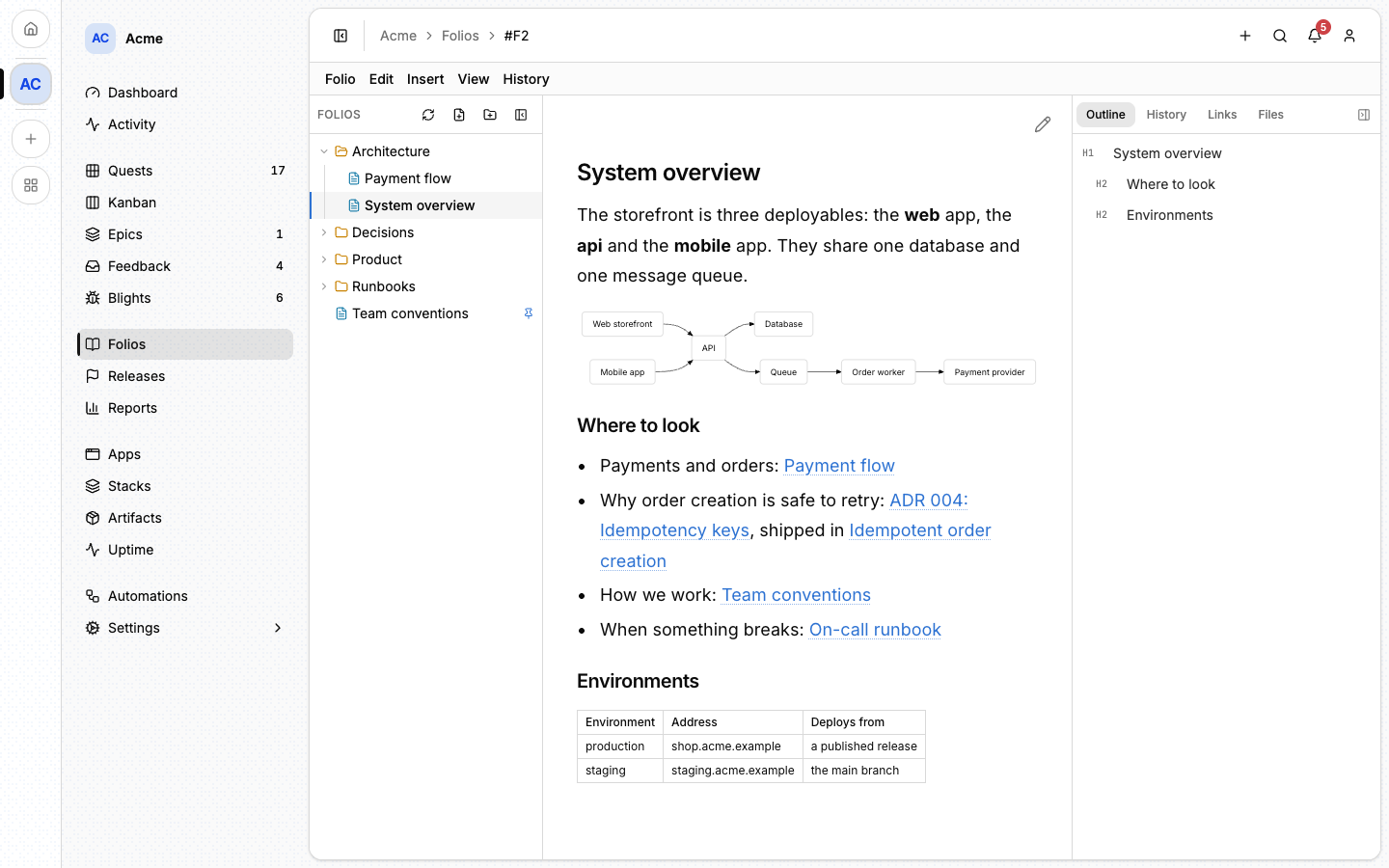
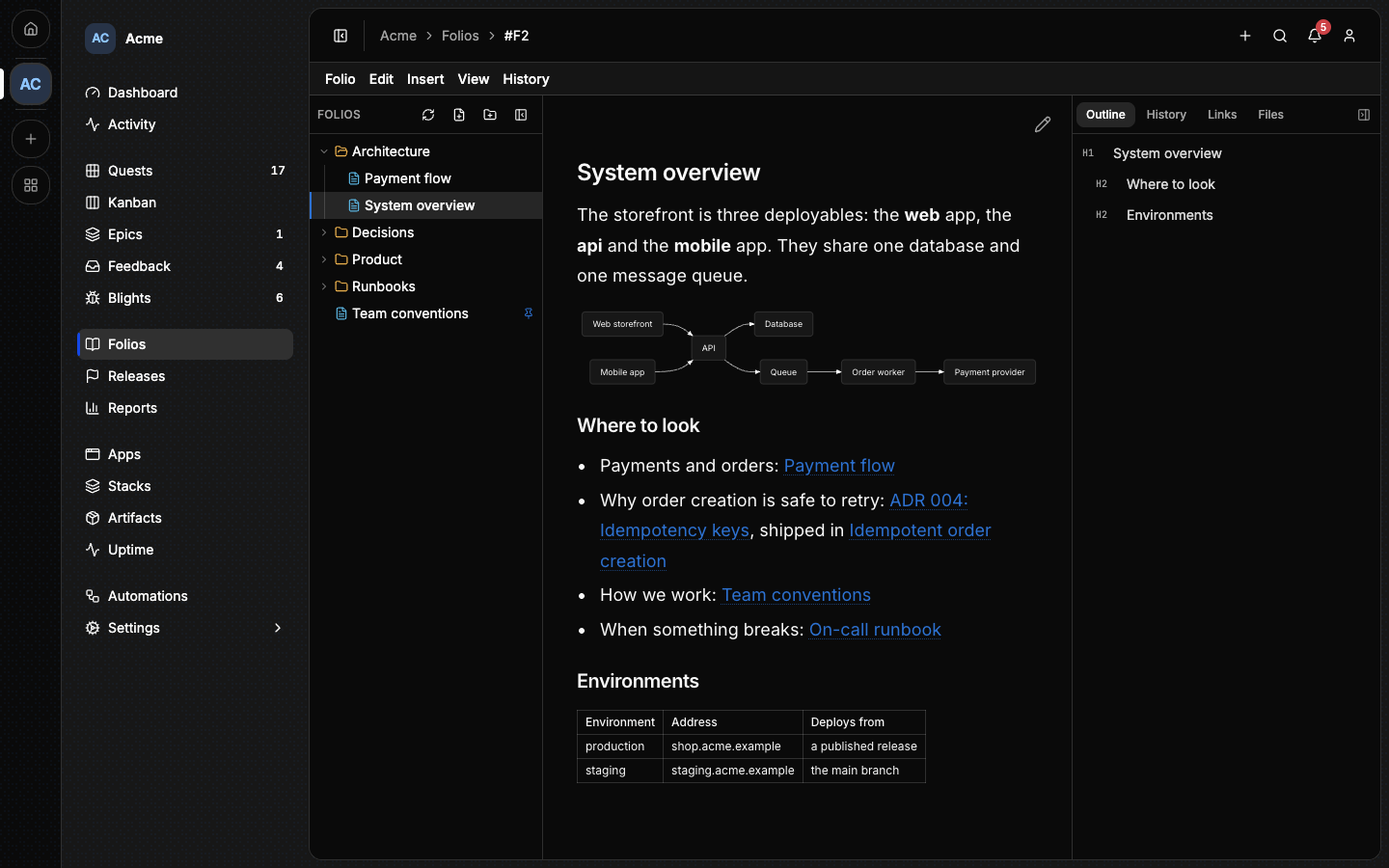
Either side pane can be collapsed, and View ▸ Focus mode (⌘.) hides both.
View ▸ Text size sets the reading size. Shortcuts are shown with ⌘; use
Ctrl on Windows and Linux.
#Writing a folio
- Click New folio at the top of the tree, or right-click a directory and choose New folio to create it there.
- Give it a title and write. The body is Markdown, and the Insert menu adds headings, lists, tables, code blocks and diagrams.
- There is nothing to submit: edits save as you type. Folio ▸ Save (
⌘S) saves at once.
A folio with content opens rendered, and an empty one opens ready for editing.
View ▸ Toggle preview (⌘E) switches between the two. Edit ▸ Find in
folio (⌘F) searches the open folio.
The Folio menu also holds Duplicate, Move to…, Export as .md
(a folio with files exports as a .zip, the files beside the Markdown) and
Delete folio.
⚠️ Deleting a folio cannot be undone.
A few habits keep folios useful:
- One topic per folio. The title is the topic.
- Short and self-contained. A folio that needs scrolling is two folios.
- Always a summary. One or two sentences on what the folio is for, starting with the kind of note it is ("Decision: ...", "Runbook: ..."). It is the line an agent reads to decide whether to open the folio at all.
The Summary for agents field appears on a folio when the Summaries for agents option is on, in Settings ▸ Folios ▸ Features. Agents read and write the summary either way.
#Directories
Folios live in a tree of directories, at most 8 levels deep. Create one with New directory, rename from the right-click menu, and move a folio or a directory by dragging it.
A folio and a directory in the same parent cannot share a name, and names are compared without regard to case.
⚠️ Deleting a directory deletes everything in it, folios included, and cannot be undone. Move what you want to keep out first.
#Links
Link to another folio, or to anything else in the project, by writing its reference between double brackets:
| You write | It links to |
|---|---|
[[#F12]] |
folio 12 |
[[#Q12]] |
quest 12 |
[[#E3]] |
epic 3 |
[[#R12]] |
release 12 |
[[#P120]] |
feedback item 120 |
The number is the per-project one shown beside each item. Nothing else between
[[ and ]] is a reference: a title, a path or an anchor renders as a broken
link. Copy wiki-link in a folio's right-click menu puts its reference on
your clipboard.
Links are recomputed on every save. The Links tab shows both directions: Outgoing, what this folio points to, and Backlinks, the folios, quests and epics that point to it. Backlinks are the useful half: they surface context you did not know was related.
#Files
A folio can carry files: images shown in its body, diagrams, PDFs. Paste or drop an image into the body while editing, or use Add files on the Files tab. See Attachments.
#History
Every change is kept as a revision: created, edited, renamed or reverted,
by whom and when, with a snapshot of the title, summary and content. The
History tab (⌘Y) lists them.
Because folios save as you type, one writing session by one person is one revision, not one per keystroke: an edit within an hour of the previous one by the same author updates that revision. A project keeps the 10 most recent revisions of each folio by default, and older ones drop off. Choose Keep on a revision to pin it: a pinned revision survives that limit.
Revert to this never rewinds. It writes a new revision holding the old content, so the state you reverted from stays in history and the revert can itself be undone.
#Pinned folios
Folio ▸ Pin to context pins a folio. A pin marks it in the tree, and its
content is handed to every agent that orients itself on the project. Pinned
folios are the project's equivalent of a CLAUDE.md or AGENTS.md: the
instructions every session should read.
Pin sparingly. All pinned folios together share a budget of about 8,000 characters, spent every time an agent orients itself, and the inspector of a pinned folio shows how much of it is used. The newest-updated come first: the first one past the budget is cut there, the ones after it are left out, and the agent is told so. Encrypted folios are never included.
#Folios and epics
A design note that belongs to an epic can be filed under it. On the epic's Folios tab, Attach Folio picks the folio and Detach takes it out again, without deleting it.
#Encrypted folios
Folio ▸ Encrypt… protects a folio with a passphrase of at least 8 characters. The content is encrypted in your browser: the server only ever stores ciphertext, never the passphrase or the plain text. Share the passphrase some other way with whoever should read the folio. Opening it asks for the passphrase, and Folio ▸ Remove protection saves it as plain text again.
What that costs:
- ⚠️ There is no recovery. Forget the passphrase and the content is gone: all that is left to do is delete the folio.
- The title and summary stay readable by every project member. Do not put the secret there.
- An encrypted folio is not searchable, its links are not tracked, and it cannot carry files.
- An agent reading it gets the ciphertext, not the text.
- ⚠️ Turning encryption on, or off, deletes the folio's revision history, pinned revisions included. Otherwise the plain-text snapshots written before encryption would stay readable in History.
#From the command line
lore folio list
lore folio list --epic E45
lore folio get F12
lore folio create --title "Decision: one database per tenant" \
  --summary "Decision: why each tenant gets its own database, and what it costs." \
  --content @decision.md
lore folio list shows pinned folios first, then the newest-updated.
--content @file reads the body from a file, @- from standard input.
lore directory delete refuses a directory that is not empty unless it is
given --cascade. The full list is in
The lore CLI.
#From an agent
An agent starting a task reads the folio index first, opens the folios that look relevant, and writes down what it learned when it is done. Without that, every session starts from nothing.
| Tool | What it does |
|---|---|
project_context |
Orientation: the folio index (titles and summaries, no bodies), and what is pinned. |
folio_search, folio_get |
Find a folio by its text, then read it with its outgoing and incoming links. |
folio_create, folio_update |
Write. Always set summary. epic_number files it under an epic, 0 detaches. |
A good habit to give your agent: orient with project_context, read what is
relevant with folio_get, and when a session produced a decision that was not
obvious, write a folio about it before finishing. folio_delete is permanent,
and directory_delete refuses a directory that is not empty unless it passes
cascade: true. The tools for history, directories and files are listed in
MCP tools.
#Next
- Attachments: files on a folio or a quest.
- Epics: the plans a design note is filed under.
- Connecting an agent: give an agent access to the project's folios.