
#Automations
An automation is a saved rule: when something happens in the project, or on a schedule, Lore checks a condition and carries out a short list of actions, such as notifying a member, appending to a folio or creating a quest. A rule does exactly what it says, every time. No AI runs inside it.
Automations are the Automations option of the Plan and track work capability, and the option starts off: see Capabilities. Turning it on grants nothing by itself. A rank also needs the Automations permissions, which only the owner holds by default (see Members):
| Permission | What it allows |
|---|---|
| Read automations | See the rules and their runs. |
| Create and edit your own automations | Write, test and enable rules of your own. |
| Manage shared variables and disable or delete any automation | Manage shared variables, and stop or delete another author's rule. |
#The automations page
Automations in the sidebar lists the project's rules: their name, their author, what triggers them, their state and their last run.
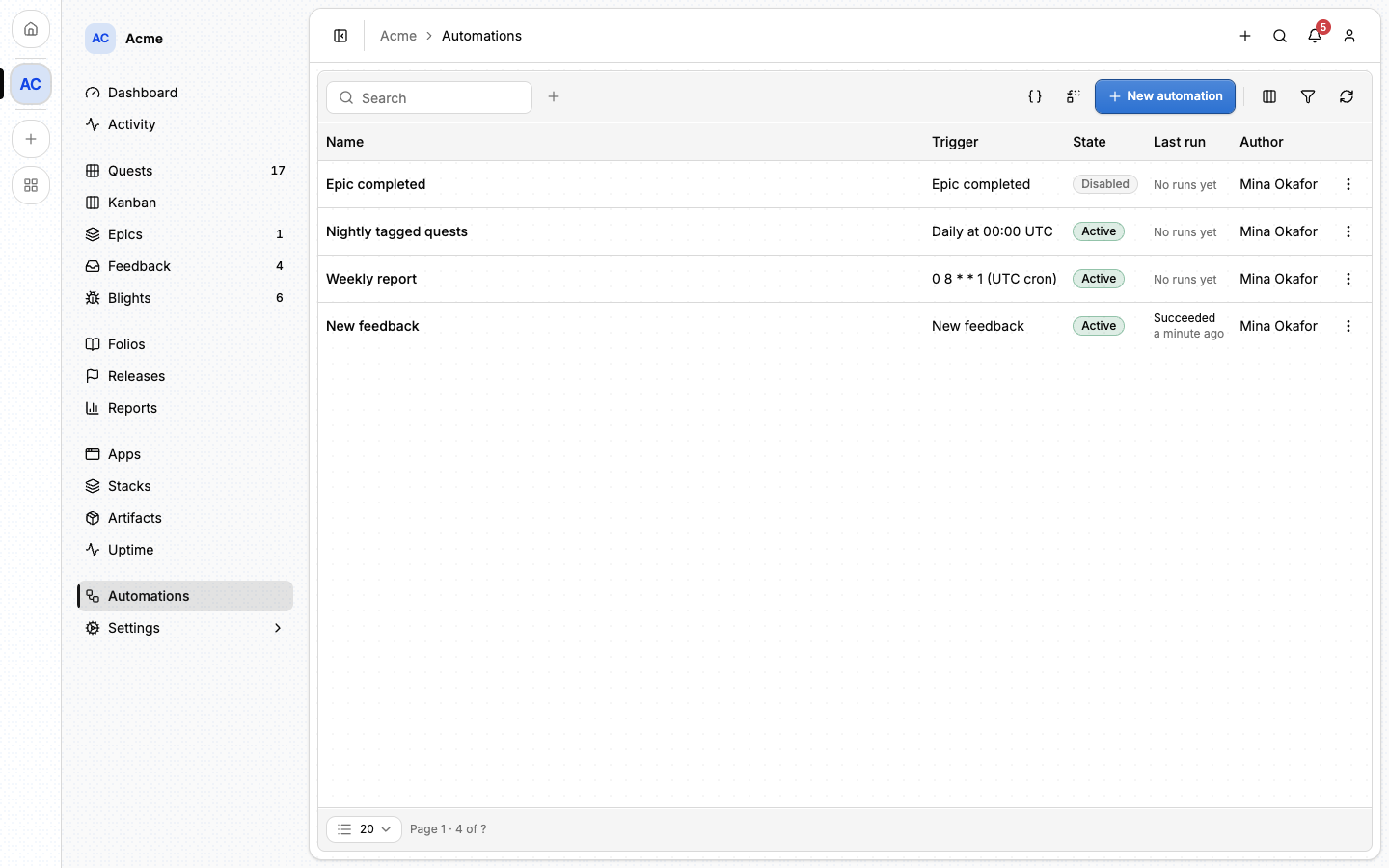
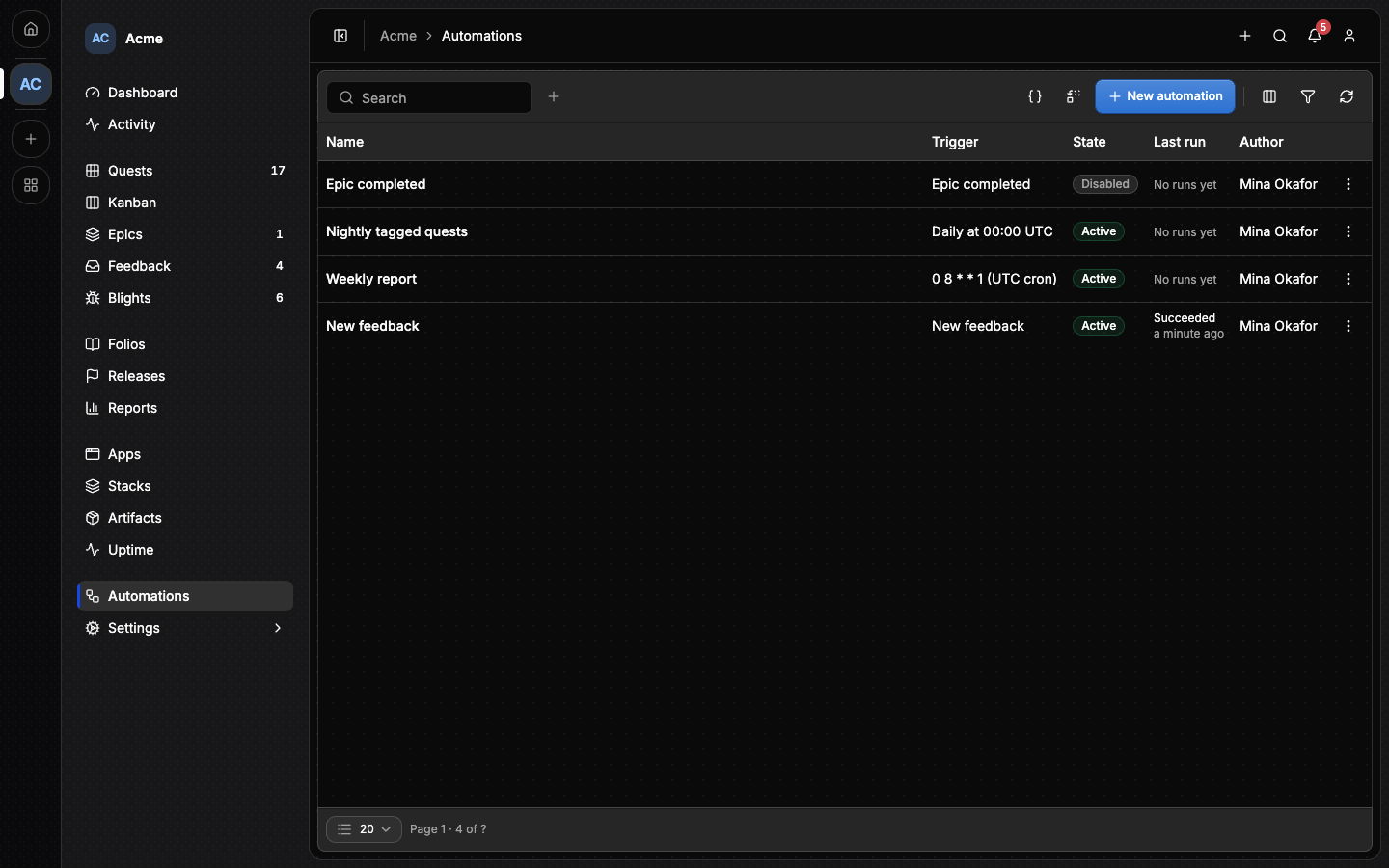
A rule is in one of four states:
| State | Meaning |
|---|---|
| Disabled | Saved, and not running. Every new rule starts here. |
| Active | Enabled and healthy. |
| Paused | Stopped until its author reviews it. See Who a rule runs as. |
| Broken | Something it needs is missing, such as a capability or a channel. |
Click a row to open the rule. A row's menu enables, disables or deletes it. The page's buttons open New automation, Shared variables and Built-in notifications.
#Creating an automation
- On Automations, click New automation. Lore offers the presets this project's capabilities, your permissions and its notification channels allow.
- Pick a preset and fill its few inputs. Members, folios and apps are chosen from pickers that search the project.
- Click Create automation. The rule is saved disabled and its page opens.
- On the rule's page, click Run test to see what it would do, then Enable it.
The presets:
| Preset | What it does |
|---|---|
| New feedback | Notifies one member when feedback is created. The reporter's contact details are left out. |
| Nightly tagged quests | Sends one digest of the open quests carrying a chosen tag, at 00:00 UTC. An empty digest is skipped. |
| Weekly report | Sends the Reports summary of the last seven days to one member, every Monday at 08:00 UTC. |
| Epic completed | Notifies one member when an epic in progress completes. |
| Coverage regression | Compares line coverage over the two last full UTC days, and alerts when it dropped by more than a threshold. |
| Open blights cross a threshold | Samples the number of open blights every five minutes, and alerts when it rises above a threshold. |
| Publish release notes to a folio | Appends a published release's changelog to a folio, then notifies one member. Each publication appends once. |
| Deployment failed | Notifies one member when a deployment of the chosen app fails, in any environment. Raw logs are left out. |
Every input belongs to this rule alone unless you choose Share with other automations, which uses or creates a shared variable.
#Testing a rule
Run test runs the rule against current data and shows what it would select, whether its condition matched and the exact messages it would send. Nothing is written, sent or remembered, even when the test is refused.
A rule triggered by an event needs a Source record to test against: a feedback item, a release, an epic of this project. The record does not change. A scheduled rule reads its current selection.
A successful test is not a delivery. After enabling the rule, look at its Run history once the real thing has happened.
#Editing a rule
On a rule's page, Edit opens its four parts:
| Part | What it holds |
|---|---|
| 1. When | One event (When something happens), or a schedule (On a schedule (UTC)). |
| 2. Records | Nothing for an event, which brings its own record. For a schedule, the list or the number the rule reads. |
| 3. Only if | Always, or one comparison on a field of what was read: equals, is above, drops by more than, ... |
| 4. Then | One to five actions, carried out in order. |
The events are new feedback, a release published, an epic completed, a quest completed, and a deployment failed or succeeded. The actions are Send a notification, Append to a folio, Create a quest, Assign the quest to a release and Tag the quest.
A schedule reads one of three things:
- A list, one run each, such as the open quests: the condition is tested and the actions run separately for each row, up to 50.
- A list as one digest, such as the open quests with a tag: the actions run once, with up to 50 rows. An empty list sends nothing.
- A number, such as the count of open blights or a coverage percentage: the actions run once if the condition matches. A measured zero is a value; a missing sample is "no data", and the rule does nothing.
Fields, comparisons and placeholders come from a fixed list for each source. There are no free queries and no code.
Saving applies to the version you opened. If the rule changed in the meantime, the save is refused and your draft is kept, so you can compare before choosing Discard draft and reload.
Disable or Delete stops the rule's queued work and everything after it. What it already did stays done.
#Messages and placeholders
A message can name fields of what triggered the rule, in double braces:
Release {{release_tag}} published. The editor lists the names available.
Only those names and your shared variables resolve: an unknown name is refused,
and a value that itself contains {{...}} is never read a second time. There
are no scripts or expressions, and HTML in a value is escaped. Stock messages
are in English, and your own wording is sent as written.
#Schedules
A schedule is a five-field cron expression in UTC, whatever your browser's
timezone, with no daylight-saving shift. A rule runs every five minutes at
most, and its minutes have to fall on a multiple of five: */5 * * * * and
0 0 * * * are valid. Runs missed during an outage are not replayed one by
one: the rule runs once, for the latest occurrence due. A rule never overlaps
itself.
#Thresholds and drops
Rises above alerts on a crossing, not on a level. The first reading only records a baseline. The rule then alerts when the value goes from at or below the threshold to above it, stays quiet while it remains above, and is armed again once the value returns to the threshold or below. Changing the condition or what is measured starts a new baseline; changing only the message, the recipients or the schedule keeps it. A test never moves the baseline.
Coverage regression compares the line-coverage samples of the two previous
full UTC days on the chosen branch (main unless you say otherwise). It alerts
only when the drop is strictly greater than the threshold, in percentage
points. If either day has no sample, the run reports no comparison data: it
does not read the day as zero, and does not borrow another branch's or an
older day's sample.
#Shared variables
A value typed into a rule belongs to that rule. A shared variable is a named value several rules use, such as a recipient or a threshold, so that changing it once changes them all. Shared variables on the Automations page creates and edits them, and lists the rules using each one. A variable holds a project member, a channel, a folio, a release, a number or a text. Creating one while setting up a preset never replaces an existing variable.
Changing a shared variable validates the rules you authored against the new value. Rules written by other authors pause: each author has to look at the change and enable their rule again. A variable still in use cannot be deleted.
#Who a rule runs as
A rule runs as its author, with the author's permissions at the moment it runs, and the author never changes. Before every run and every action, Lore checks again that the author still has their account, their membership, the rank permissions and the project capabilities the rule needs. A rule created through an API key or an agent's connection also stops when that key or connection is revoked, expires or loses the access the rule needs. Someone who manages automations can stop or delete another author's rule, and cannot edit it, enable it or lend it their own permissions.
The people a rule notifies must still have access to what it is about, and their notification preferences are applied when the message is sent. Someone who may read automations but not the rule's source sees "Source access unavailable" in place of its details.
When something a rule depends on goes away, its state says which case it is:
- Broken: a capability or a channel is unavailable. Bringing it back recovers a rule that is still enabled.
- Paused: the author lost a permission, was removed from the project, someone else changed a shared variable the rule uses, or an action ended with an unknown outcome. Restoring access is not enough. The author reads the reason, fixes it, tests again and enables the rule.
The author gets one message in their inbox, linking to the rule, when it pauses or breaks, and not again while it stays that way. A check that could not be made, because Lore could not read its own data for a moment, changes nothing: the rule stays as it was and is checked again a few minutes later.
What an automation does never triggers another automation, so rules cannot chain into a loop. Everything else still applies to its actions: the usual validation, history and notifications.
#Runs
A rule's page lists its Run history. A run ends as succeeded, skipped, refused, failed, partially completed or with an unknown outcome, and opening it shows each action's outcome.
Actions are carried out in order, and each one stays done. If the folio was appended and the notification then failed, the folio stays appended and the run is Partially completed. A retry does not append the same publication twice, and nothing is rolled back to make a run look all-or-nothing.
A notification shown as Queued means the message was handed to delivery, not that it arrived. The run shows the live receipts separately: an inbox message is Delivered once it is in the inbox, and an email is Sent once the mail service accepted it, which does not confirm it was received or opened. A queued message can still be skipped if the recipient's address or preferences change.
An action whose result could not be confirmed is Unknown. It stops the actions after it and pauses the rule: check the destination yourself before enabling the rule again, since Lore does not resend blindly.
#Limits
| What | Limit |
|---|---|
| Actions in a rule | Five. |
| Rows a schedule reads | 50. Beyond that the run says the selection was capped; the rest is not fetched. |
| One rendered message | 16 KiB. A longer one is cut, and the run says so. |
| What a run records as its input | 64 KiB. A run that cannot record it is refused before any action. |
| Deliveries in one run | 100. A larger audience continues in further runs. |
| Run details | Kept 30 days. |
| Protection against repeats | 90 days: an occurrence already handled is not handled again, even after its run details are gone. |
A run whose details have expired can no longer be tested against: choose a current record instead. Edits to a rule are also written to the project's audit history, which has its own limited retention, separate from the two windows above.
#Built-in notifications
Two notifications work without any automation, and keep working whether Automations is on or off:
- Per-quest reminders: the email nudges a quest's holder sets on the quest, governed by the Reminders option.
- Release announcements: when a release is published, every member but the publisher is told in their inbox and by email.
Built-in notifications on the Automations page lets you adopt one of them: it is replaced by an automation that you own and can edit. Nothing is adopted for you, and adopting grants no permission and enables no capability.
- Open Built-in notifications and read the preview: who would author the rule, the permissions and channels it needs, who it would notify and, for reminders, how many are configured. The release preview assumes you are the publisher.
- Choose a new rule, or a compatible rule you already own.
- Click Consent and adopt. If it is interrupted, Resume my adoption picks up the rule already prepared.
⚠️ Adoption is permanent. The built-in notification stops at that moment and never comes back. Disabling or deleting the replacement rule is how you opt out of that notification altogether: adopting again does not turn it back on, and only the rule's original author can enable it again.
An adopted reminder rule keeps what reminders did: it runs hourly, follows each quest's own interval and next date, emails the quest's holder, and writes the reminder in the quest's history. It is also the one rule not held to 50 rows: it works through every reminder due. An adopted announcement rule keeps the same audience and both channels, and needs no folio. It is not the Publish release notes to a folio preset, which notifies one member.
Inbox and email are the channels. Another channel appears in the pickers only when the instance has it configured: naming one in a rule does not create it.
While Automations is off, the owner can still read every rule and its health in Settings ▸ Quests ▸ Automations. That view cannot run or edit a rule.
#From the command line
lore automation catalog
lore automation list
lore automation test <id>
See The lore CLI for every command.
#From an agent
An agent can write a rule for you, and the saved rule then runs without it.
It reads automation_catalog first (the events, selections, actions, channels
and limits this project allows), then calls automation_create with the four
parts:
1{ 2 "project_name": "Acme", 3 "title": "Record published releases", 4 "rule": { 5 "version": 1, 6 "trigger": { "kind": "event", "event": "release.published" }, 7 "select": null, 8 "guard": null, 9 "actions": [10 {11 "kind": "appendFolio",12 "folio": "11111111-1111-4111-8111-111111111111",13 "text": "## {{release_tag}}\n{{changelog}}\n\n{{quest_count}} quests. {{url}}"14 },15 {16 "kind": "notify",17 "recipient": "22222222-2222-4222-8222-222222222222",18 "channel": "inbox",19 "category": "releases",20 "title": "Release {{release_tag}} published",21 "text": "{{project}}: {{title}}. {{url}}"22 }23 ]24 }25}The UUIDs stand for a folio and a member of the same project (a member is a
user id, not an email address). The rule is created disabled. automation_test
previews it, with source: { "kind": "subject", "id": 12 } naming a release of
the project, and automation_update with the current expectedRevision and
enabled: true turns it on.
The full list is in MCP tools.
#Next
- Notifications: where the messages land, and how a member turns them off.
- Releases: what a published release holds.
- Folios: where a rule can append.
- Members: who may write and manage rules.